> ## Documentation Index
> Fetch the complete documentation index at: https://wb-21fd5541-feat-cli-docs-generator.mintlify.site/llms.txt
> Use this file to discover all available pages before exploring further.
# Move runs
This page shows how to move a run from one project to another, into or out of a team, or from one team to another. You must have access to the run at its current and new locations.
When you move a run, historical artifacts associated with it are not moved. To move an artifact manually, you can use the [`wandb artifact get`](/models/ref/cli/wandb-artifact/wandb-artifact-get/) SDK command or the [`Api.artifact` API](/models/ref/python/public-api/api/#artifact) to download the artifact, then use [`wandb artifact put`](/models/ref/cli/wandb-artifact/wandb-artifact-put/) or the `Api.artifact` API to upload it to the run's new location.
To customize the **Runs** tab, refer to [Project page](/models/track/project-page/#runs-tab).
If you group runs into experiments, refer to [Set a group in the UI](/models/runs/grouping/#set-a-group-in-the-ui).
## Move runs between your projects
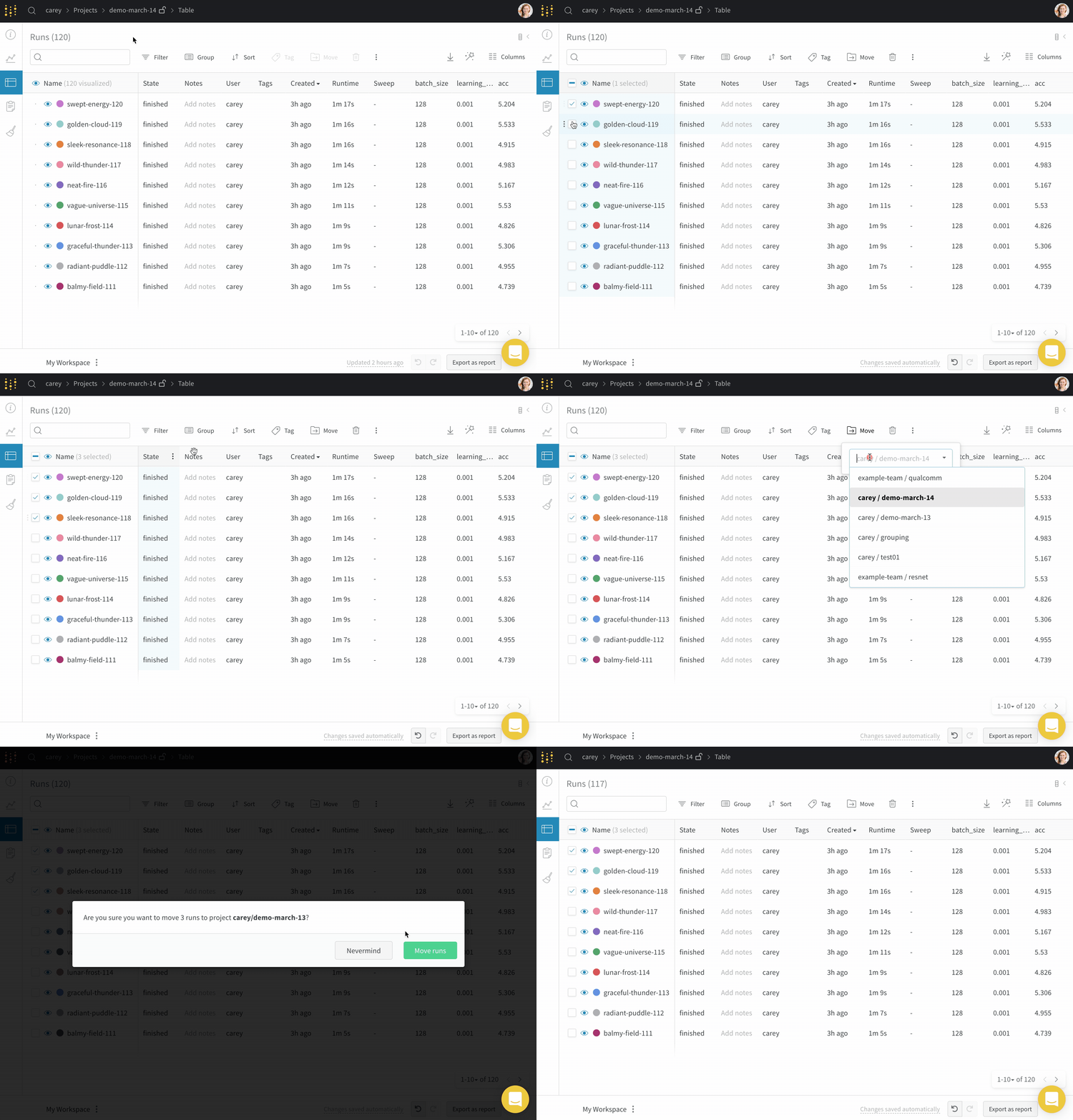
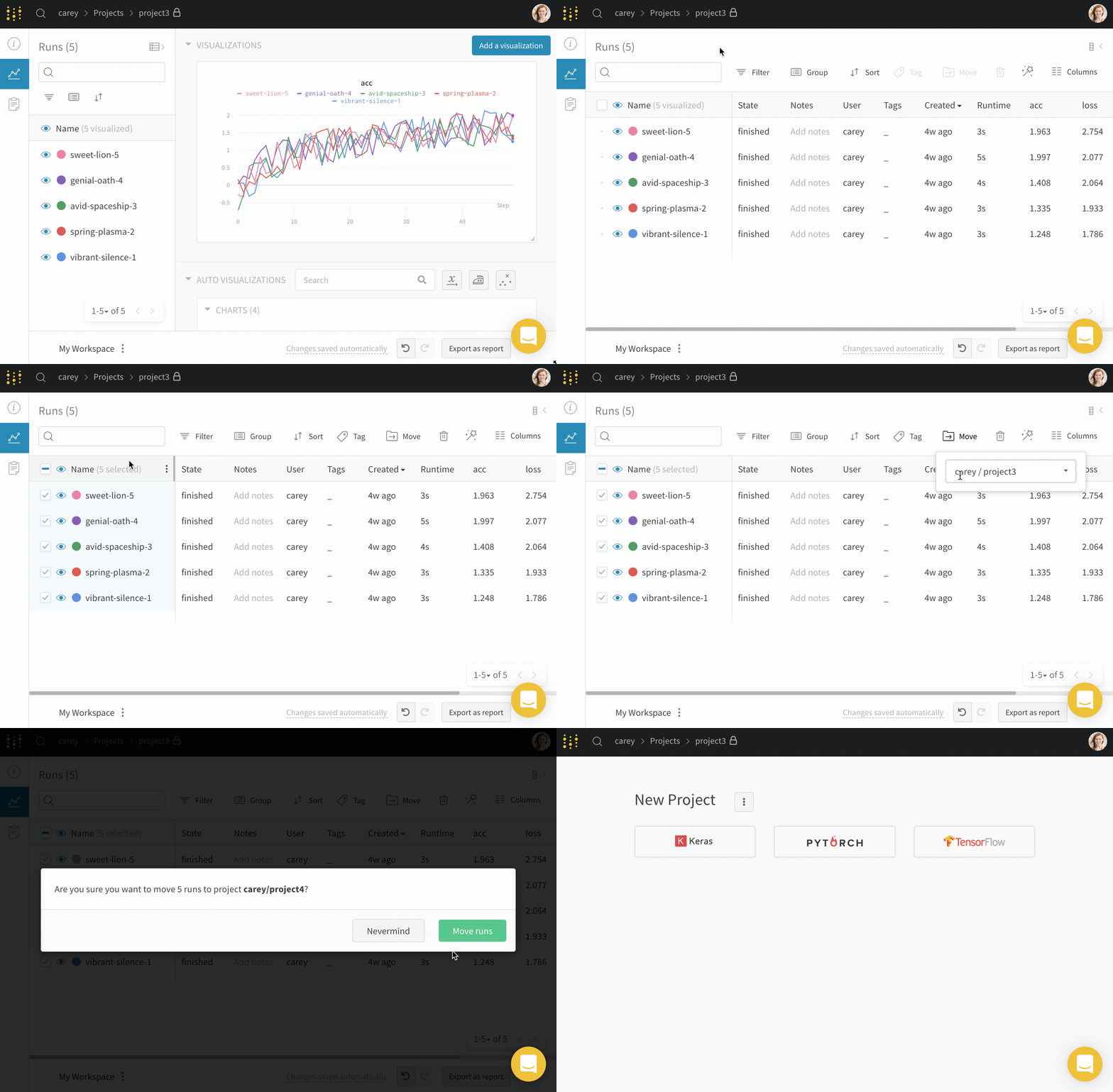
To move runs from one project to another:
1. Navigate to the project that contains the runs you want to move.
2. Select the **Runs** tab from the project sidebar.
3. Select the checkbox next to the runs you want to move.
4. Choose the **Move** button above the table.
5. Select the destination project from the dropdown.
 ## Move runs to a team
Move runs to a team you are a member of:
1. Navigate to the project that contains the runs you want to move.
2. Select the **Runs** tab from the project sidebar.
3. Select the checkbox next to the runs you want to move.
4. Choose the **Move** button above the table.
5. Select the destination team and project from the dropdown.
## Move runs to a team
Move runs to a team you are a member of:
1. Navigate to the project that contains the runs you want to move.
2. Select the **Runs** tab from the project sidebar.
3. Select the checkbox next to the runs you want to move.
4. Choose the **Move** button above the table.
5. Select the destination team and project from the dropdown.